Key Takeaways
- VT Markets allows up to 20 live trading accounts per client, with zero account opening or maintenance fees.
- A simple, secure registration process with mandatory identity and address verification to comply with global regulations.
- Choose from a variety of account types, including Standard, Raw ECN, Swap-free, and Cents accounts
- Access to global financial markets, including forex, commodities, indices, and CFDs.
- Lightning-fast trade execution, high liquidity, and low transaction costs for a seamless trading experience.
Whether you’re new to trading or an experienced investor, our account opening process is easy, secure, and fast.
In this comprehensive FAQ guide, we’ve addressed the most common questions to help you smoothly set up your VT Markets account and start trading with confidence.
Step-by-Step Guide to Opening an Account with VT Markets
Opening a trading account with VT Markets is fast and straightforward. Follow these simple steps to get started:
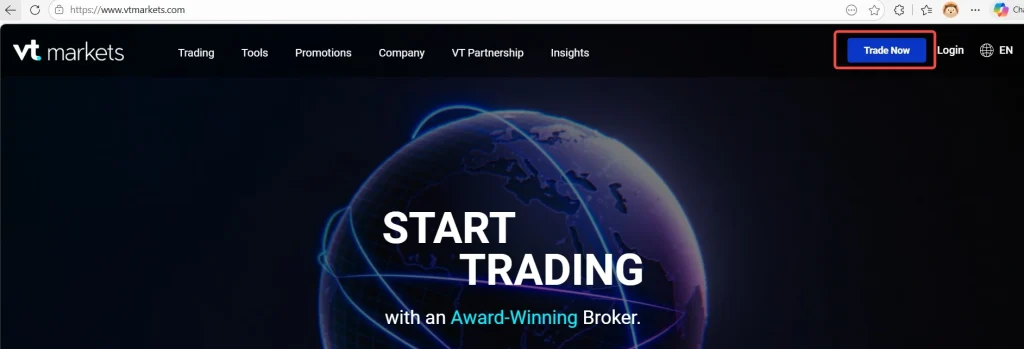
Step 1: Access the Account Opening Page
- Visit the official VT Markets homepage: www.vtmarkets.com/
- Click on the Trade Now button located at the top of the page.
Step 2: Fill Out the Registration Form
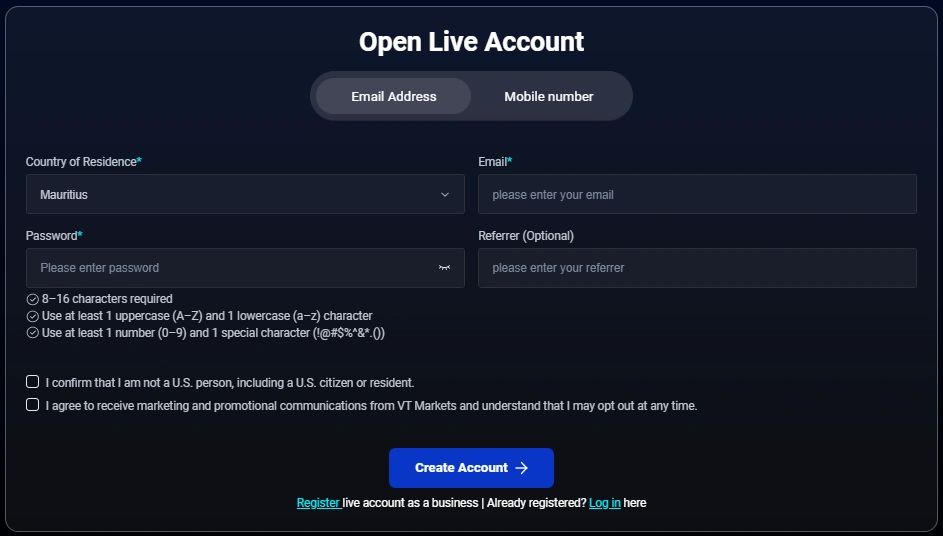
Provide the following details to set up your account:
- Country of Residence: Choose your country from the dropdown menu.
- Registration method: Enter your email address or phone number.
- Password: Create a strong password using these requirements:
- 8–16 characters
- At least one uppercase letter (A-Z)
- At least one lowercase letter (a-z)
- At least one number (0-9)
- At least one special character (!@#$%^&*.)
- Referrer ID (optional): If referred by someone, enter their ID here.
- Confirm Eligibility: Tick the box confirming you are not a U.S. resident.
- Click Create Account to proceed.
Step 3: Verify Your Email Address/ Phone Number
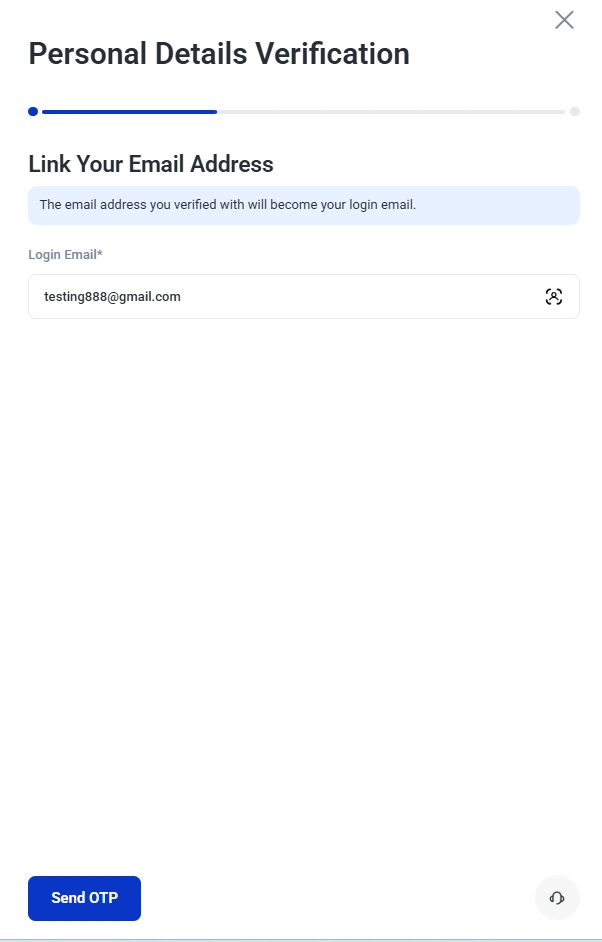
If you register using a phone number, you will be asked to link your email address after registration.
Enter your email address and tap Send OTP.
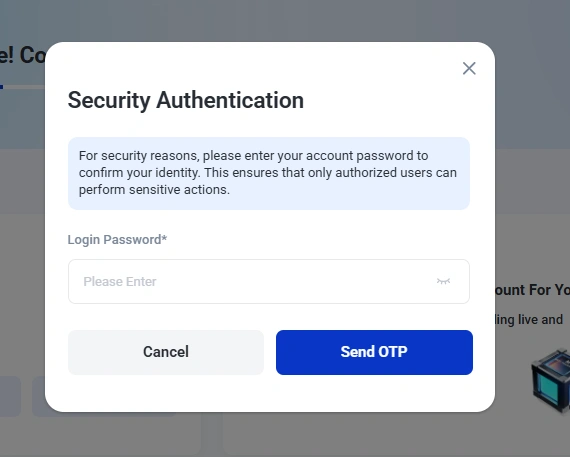
Enter your login password and tap Send OTP again for security verification.
You will receive an OTP sent to your linked email address and key in the OTP to complete the verification process.
Step 4: Continue to Account Verification
After completing the registration process, you will be directed to the Home page.
Tap Verify Identity to start the identity verification process.
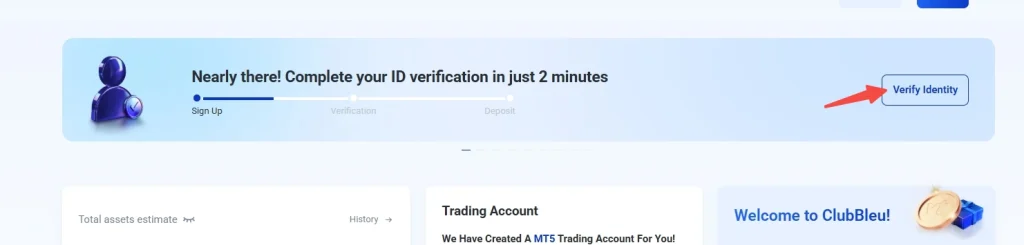
Then click start verification.
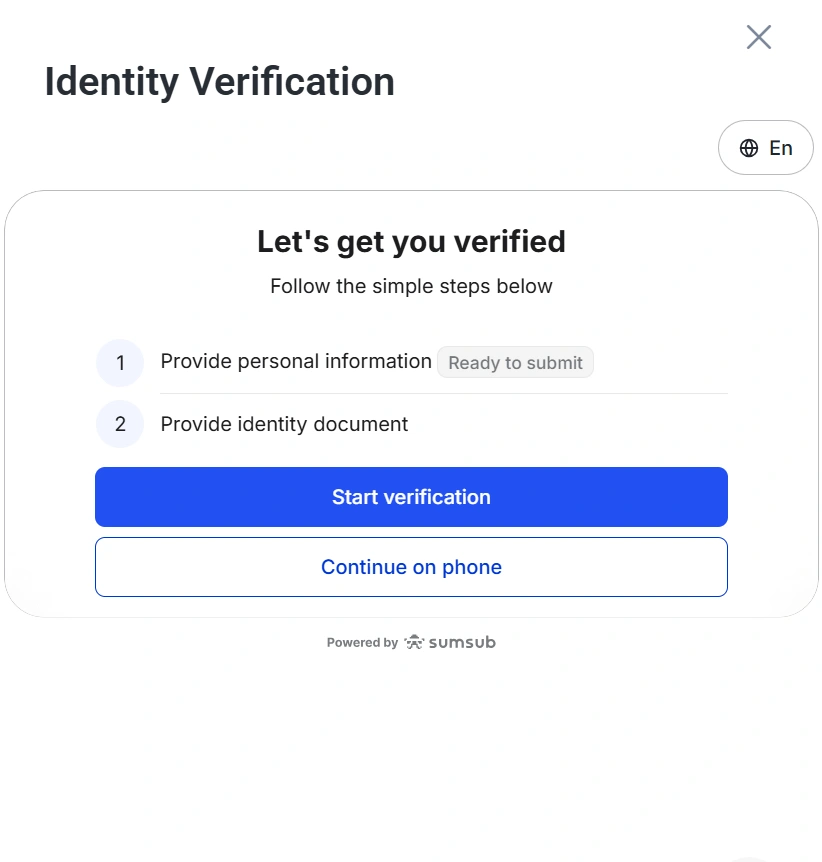
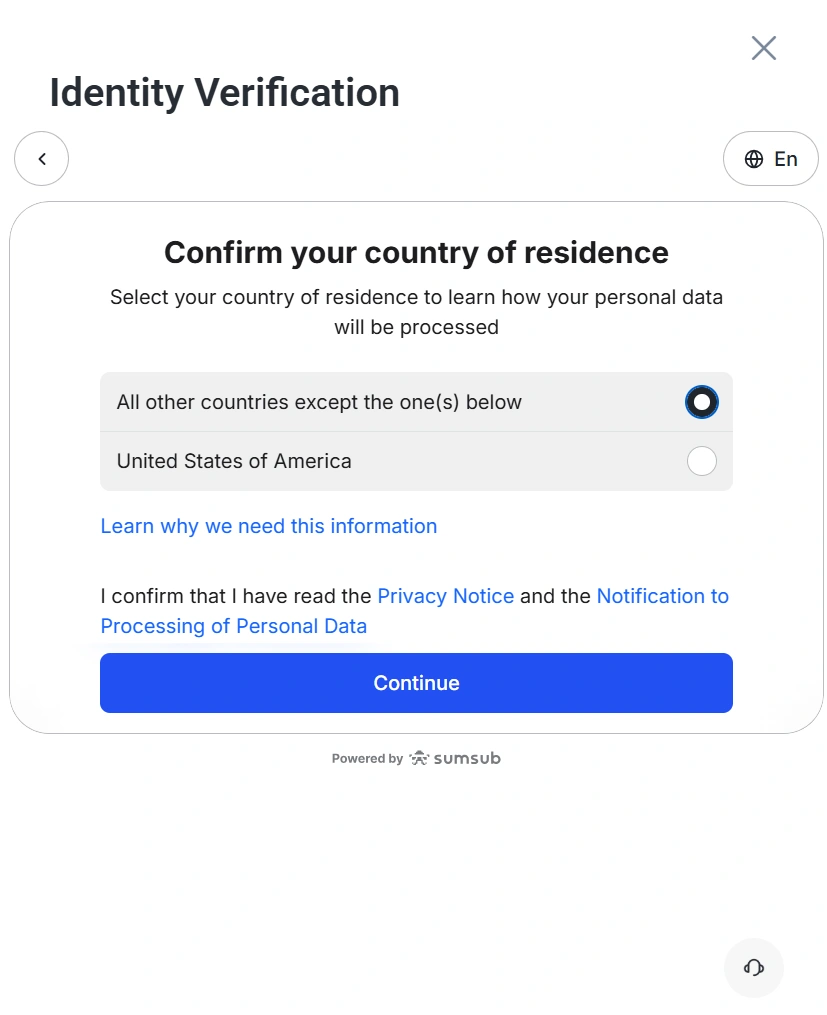
Step 5: Confirm Your Country of Residence
Confirm your country of residence by choosing All other countries except the one(s) below.
Then tap Continue.
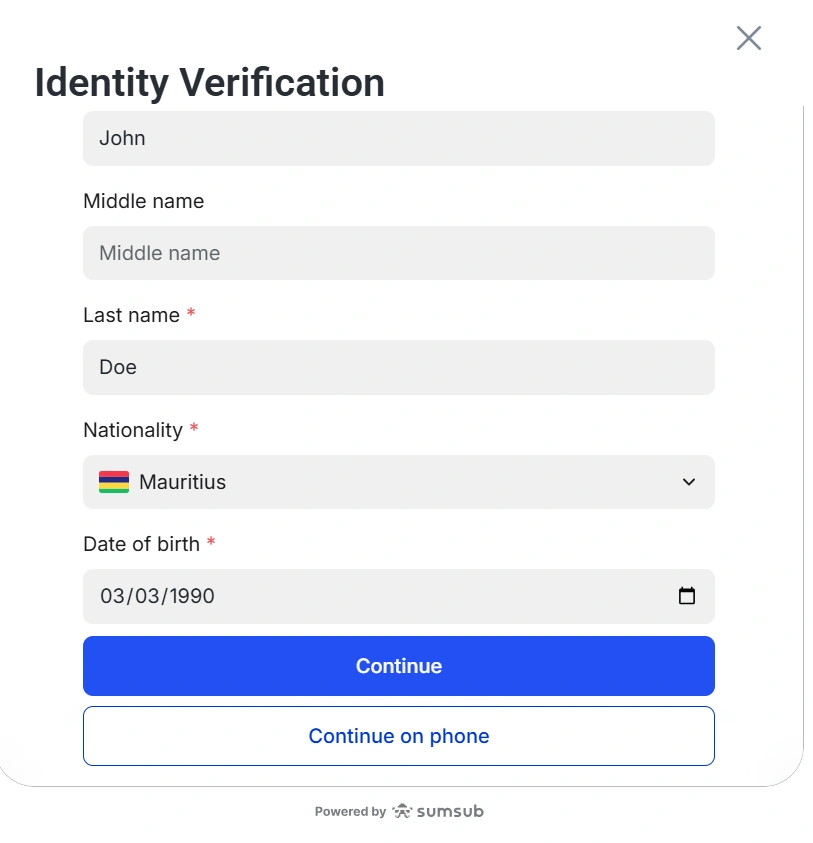
Step 6: Fill Up Your Personal Details
Fill up your personal details including:
- Name
- Date of Birth
- Nationality
Once done, tap continue.
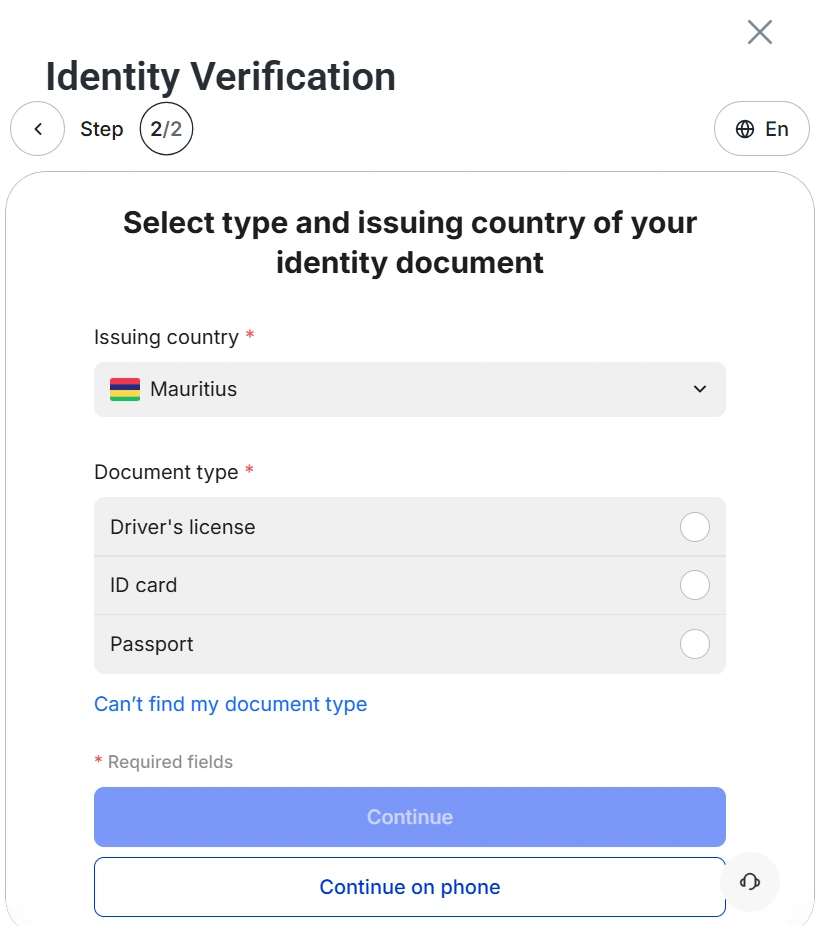
Step 7: Select your issuing country and document type
Next, choose the country that issued your document.
Then, select the type of document you would like to use for verification. This may include options such as an identity card, passport, or driving licence, depending on your region and availability.
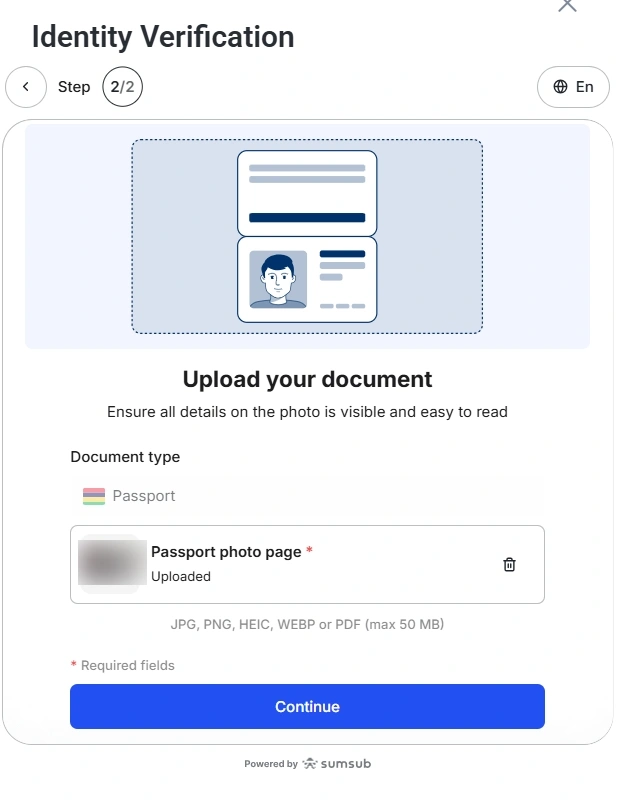
Step 8: Upload Your Verification Document
Follow the on-screen instructions to upload your chosen document.
For example, if you select passport, make sure the image is clear and all details are visible before clicking Continue.
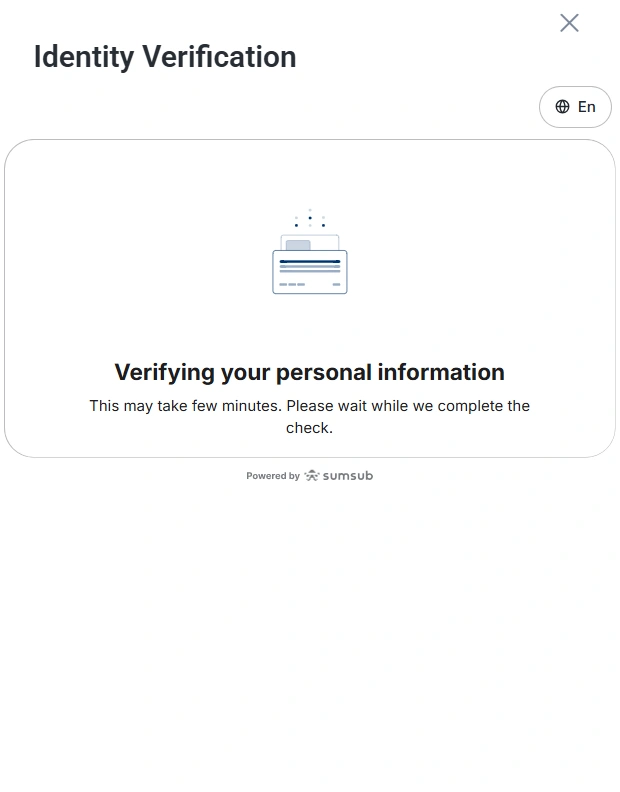
Step 9 : Wait for Document Review
After submitting your document, VT Markets will review your information and uploaded files.
The review process may take some time. During this stage, your account status may show that it is under review or being processed.
Step 10: Reupload Documents If Required
If your verification is not approved, you may be asked to reupload your document or provide a different document type.
To reduce the chance of rejection, make sure:
- Your document image is clear
- All corners of the document are visible
- The details match the information entered in the app
- The document is valid and not expired
- There is no glare, blur, or obstruction
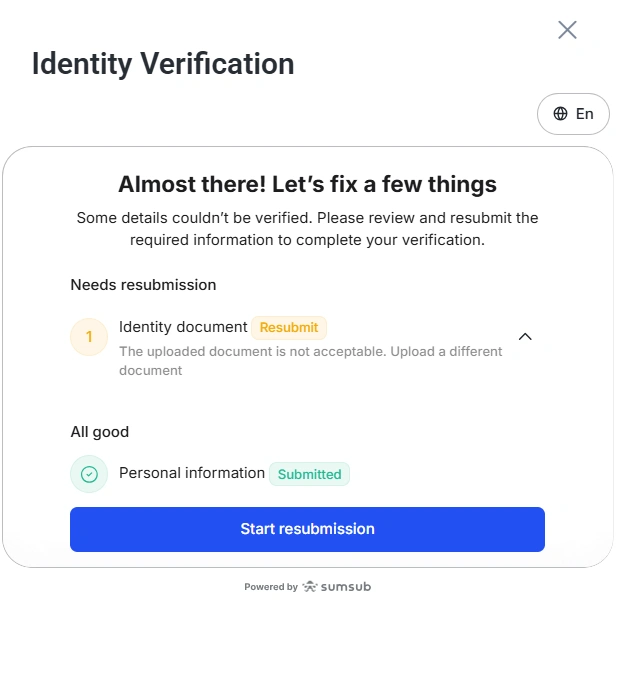
Once the updated document is resubmitted, your account will return to the review stage.
Step 11: Open trading account
Once your identity verification is completed, you can proceed to open a trading account.
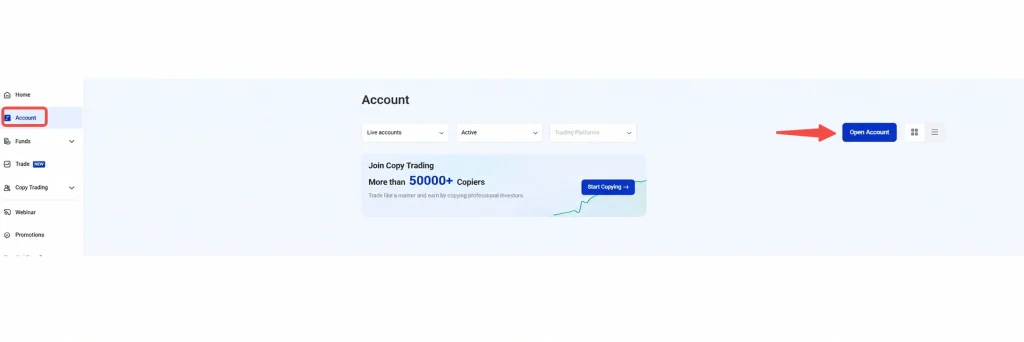
Go to the Account section from the left navigation bar, then click Open Account to create a new trading account.
Step 12: Select Your Trading Platform
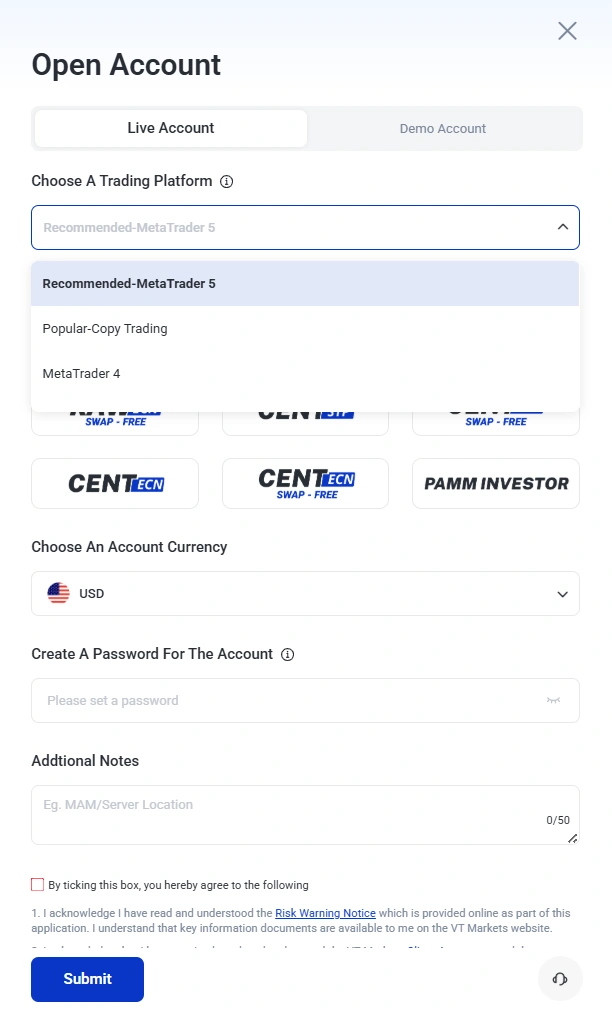
Next, choose the trading platform you would like to use.
Depending on availability, you may be able to select from options such as:
- MetaTrader 4 (MT4)
- MetaTrader 5 (MT5)
- Copy Trading
Choose the platform that best suits how you plan to trade.
Step 13: Choose Your Account Type
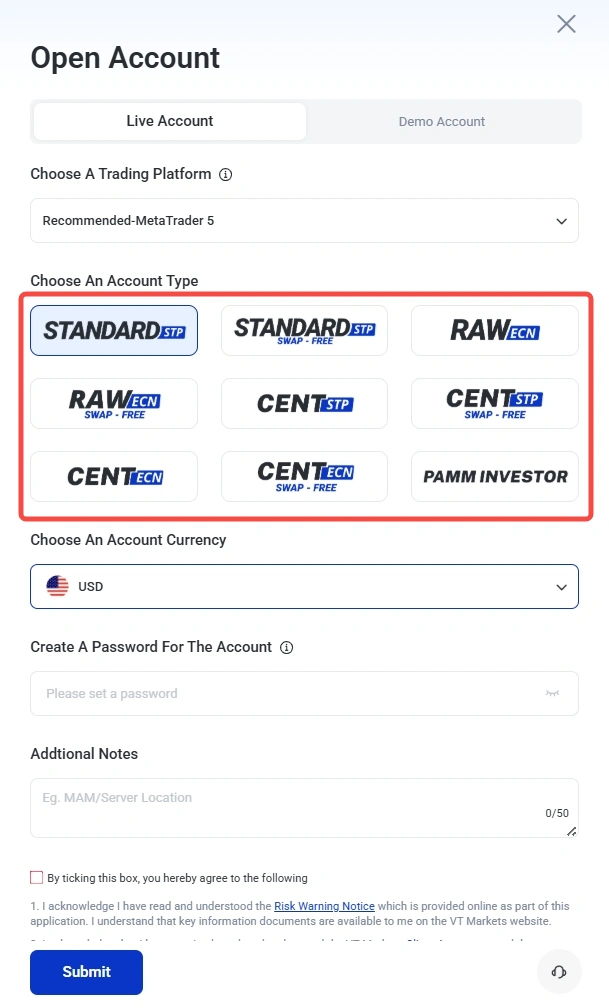
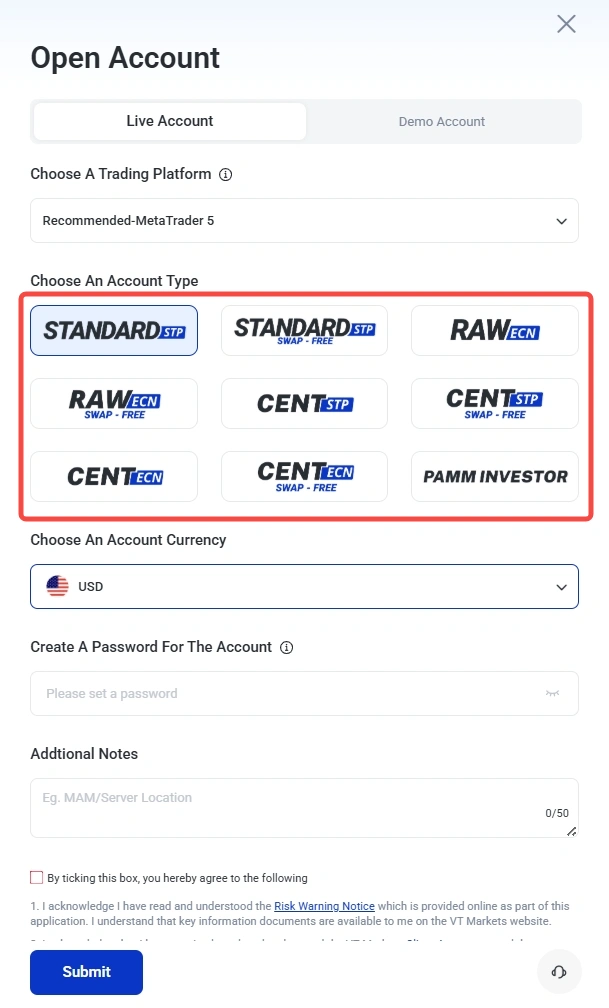
After selecting your platform, choose your preferred account type.
Different account types may suit different trading needs, experience levels, and trading styles. Review the options available in the app before making your selection.
For more information about account types, you may refer to the following guides:
- The Complete Guide to the VT Markets Raw ECN Account
- The Ultimate Guide to the VT Markets Standard STP Account
- What is a Swap-Free Account?
- What Is a Trading Cent Account — and Why Many Beginners Start Here
Step 14: Select Your Preferred Account Currency
Next, choose your preferred account currency.
This will be the currency used for your trading account balance, deposits, withdrawals, and account calculations where applicable.
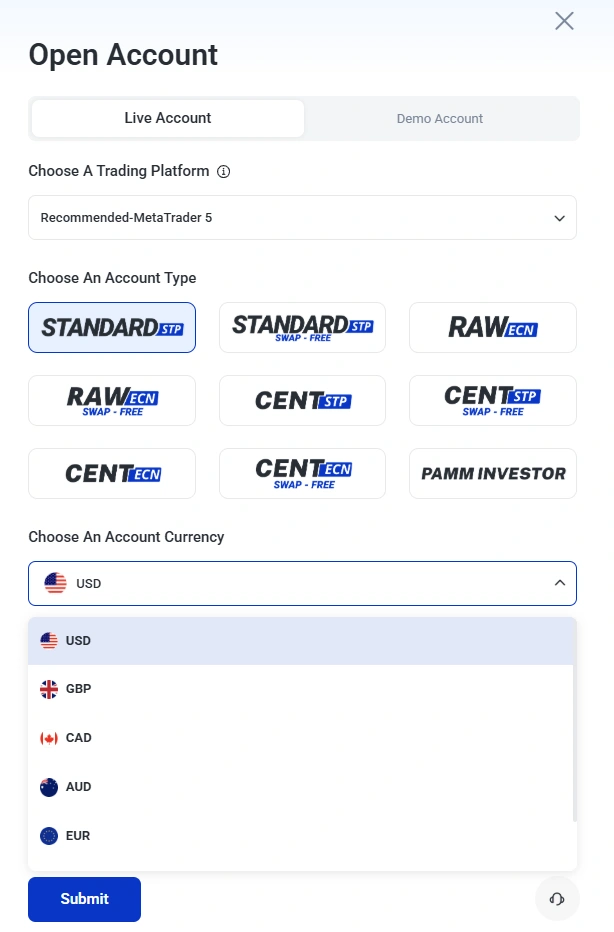
Note: The most common currency is USD. It is recommended to select the currency based on the product traded, or your country of residence for lower conversion costs
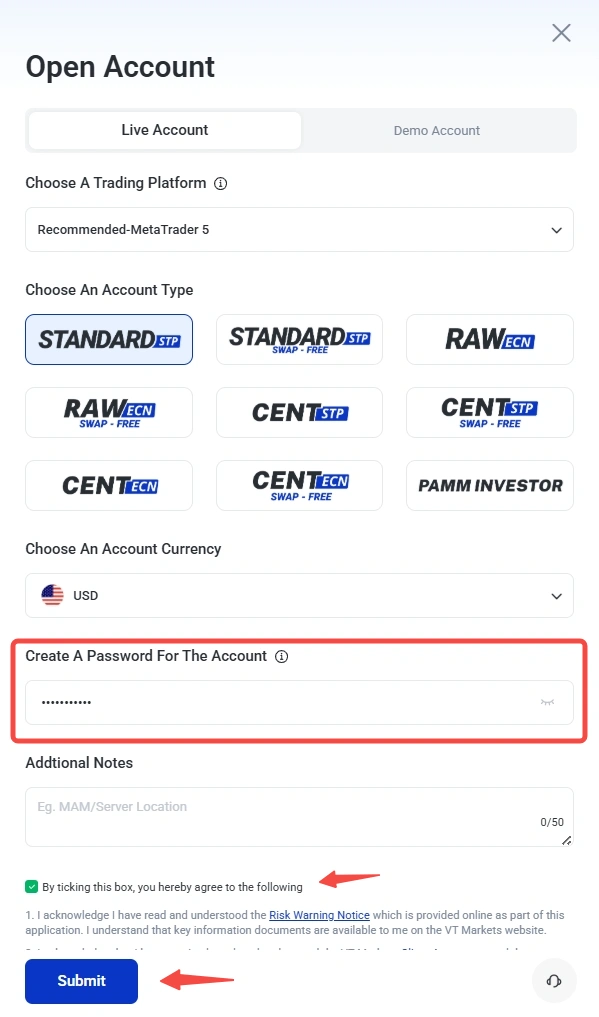
Step 15: Create Account Password
Set up your account password, tick the checkbox to agree to the Terms and Conditions, then click Submit to continue.
Step 16: Account Created
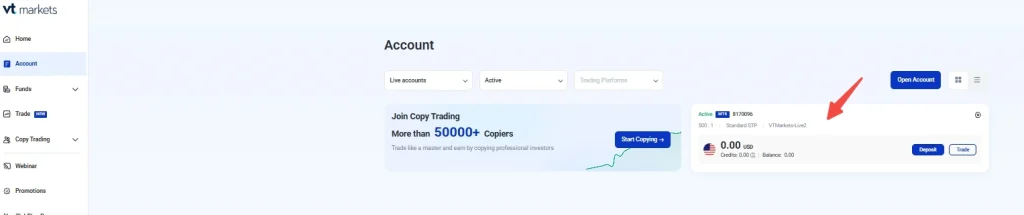
Once your account is created, you can view your account details under the Account section.
Step 17: Complete Residence Verification
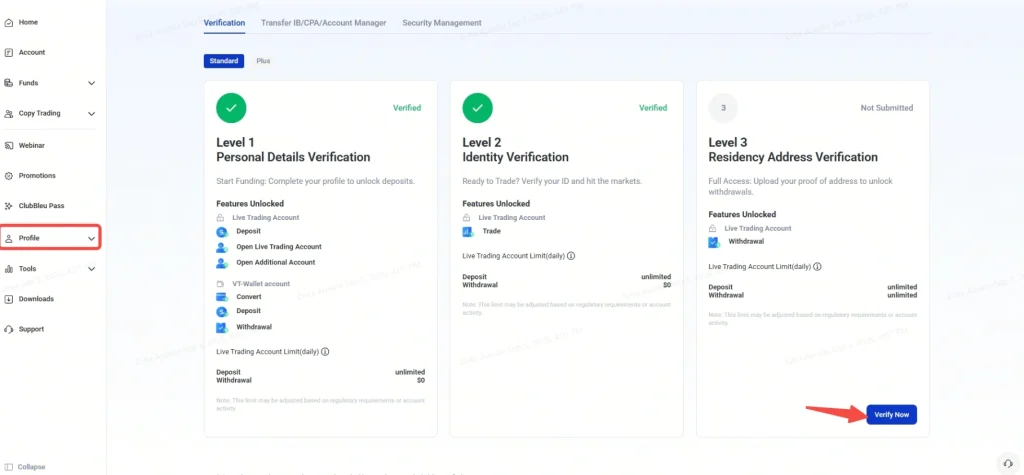
To unlock all features including withdrawal, you are required to complete residence verification.
- Go to Profile > Verification.
- Tap Verify Now
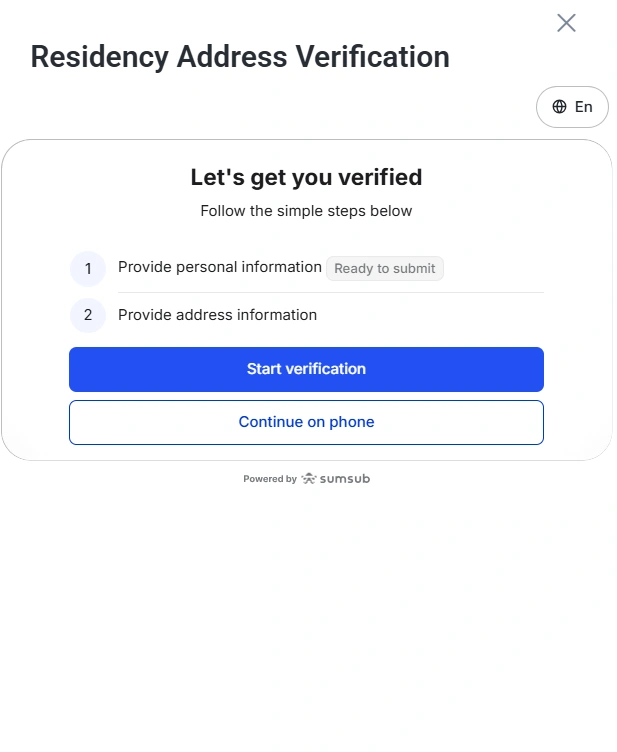
You will be redirected to the verification page, then click Start Verification to continue.
Step 18: Confirm Your Country of Residence
Next, confirm your country of residence.
If you are not a resident of the United States, select All other countries except the one(s) below and click Continue.
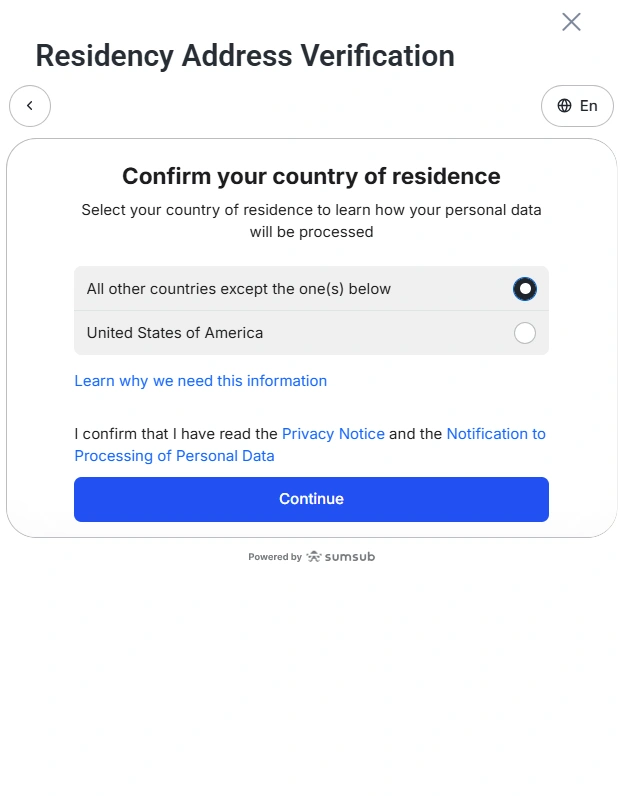
Step 19: Review Your Personal Information
Please review your personal information again . This may include your country, first name, last name, and middle name, where applicable.
Make sure the details are accurate and match the document you will use for verification.
Click Continue once the information is complete.
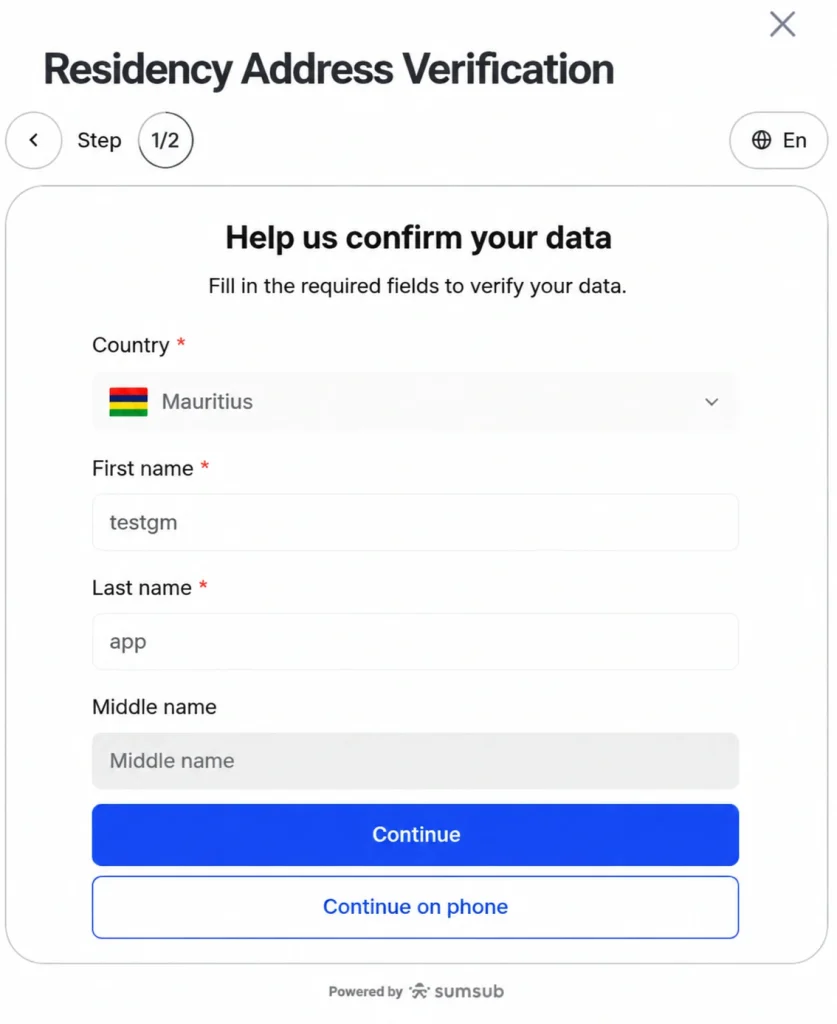
Step 20: Upload Your Proof of Address
Next, upload a document that shows your residential address.
Accepted document types may include:
- Valid ID document with address details
- Bank documents issued within the last 6 months
- Utility bills issued within the last 6 months
- Government-issued documents issued within the last 6 months
Supported file formats may include JPG, PNG, HEIC, WEBP, or PDF, subject to the file size limit shown in the app.
Make sure the document clearly shows your name, address, and issue date where required before submitting it.
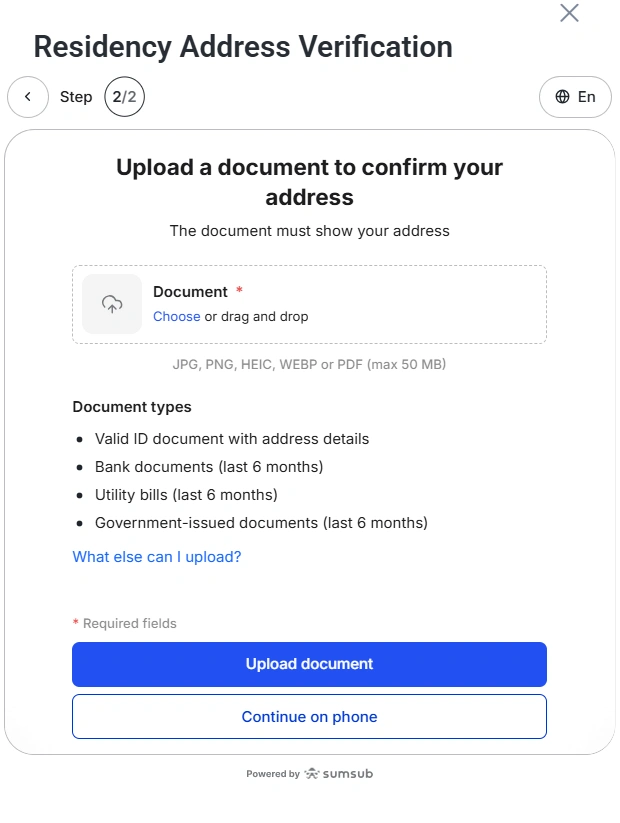
Step 21: Wait for Residence Verification Review
After submitting your proof of address, VT Markets will review your information.
The review process may take some time. During this stage, you may see a verification screen while the check is being completed.
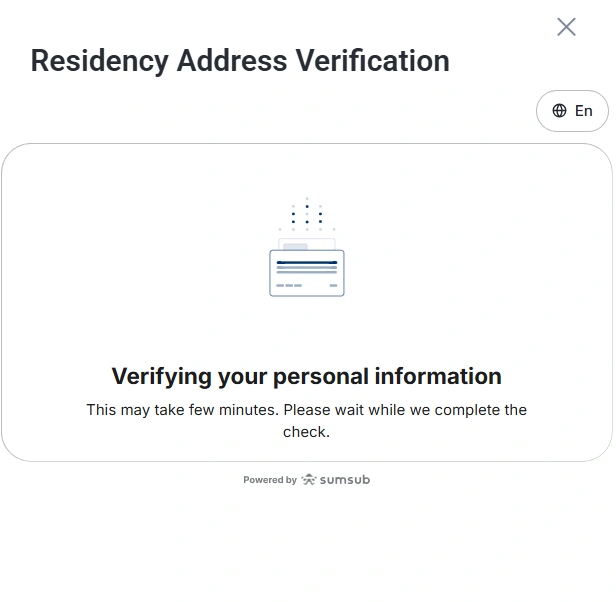
Step 22: Reupload Documents If Required
If your verification is not approved, you may be asked to reupload your document or provide a different document type.
To reduce the chance of rejection, make sure:
- Your document image is clear
- All corners of the document are visible
- The details match the information entered in the app
- The document is valid and not expired
- There is no glare, blur, or obstruction
Once the updated document is submitted, your account will return to the review stage.
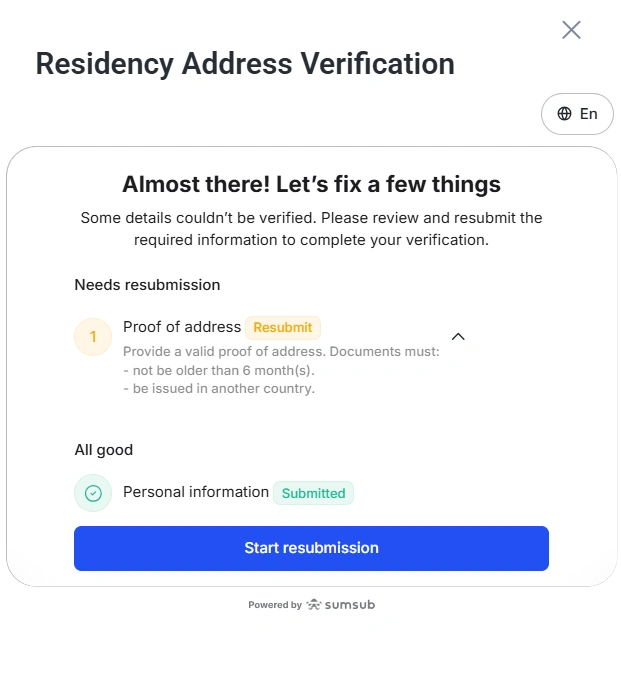
Once completed, you can proceed with making a withdrawal from your account.
Opening a Joint Trading Account with VT Markets
If you’re looking to open a joint trading account with VT Markets, both account holders must have a joint bank account. This type of account allows multiple individuals to manage trading activities together. To apply for a joint account, you will need to provide the following documents:
- IDs of all individuals listed on the joint account.
- A bank statement confirming that both individuals hold cards with their names.
Once you submit the documents, we will process the application within 3 business hours. Joint accounts are ideal for couples, business partners, or family members who want to trade together.
Opening a Company Trading Account
If you own a business and are looking to open a company trading account with VT Markets, you will need to provide specific documentation. This type of account is suitable for corporate entities that wish to manage trading on behalf of the company. The required documents include:
- ID of the company director
- Proof of Address (POA) for both the company and the director
- Company registration certificate
- Corporate Account with official stamp
Once you’ve submitted all the necessary documents, your application will be processed within 1 business day. This option is great for businesses or organizations looking to trade financial markets on behalf of the company.
Types of Accounts and Platform Available at VT Markets
VT Markets offers several account types to suit traders of all experience levels and goals. Whether you are just starting or are an experienced trader, there is an account type suited to your needs:
| Account Type | Best for | Key advantages |
|---|---|---|
| Standard STP | Beginners & Swing Traders seeking simplicity. | $0 Commission and ultra-low spreads. |
| Raw/Pro ECN | Scalpers & High-Volume Traders. | Direct market pricing from 0.0 pips. |
| Cent account | Learning & Strategy Testing. | Trade with USC to minimize capital risk. |
| Swap – Free | Long-term & Islamic Traders. | No overnight interest; Sharia-compliant. |
Here’s a further breakdown of the differences between Standard STP and Raw ECN accounts:
| Account Type | Standard STP | Raw ECN |
|---|---|---|
| Spreads | 1.2 pips | 0.0 pips |
| Minimum Deposit | $50 | $50 |
| Commission | $0 | $6 (per round turn) |
| Minimum Trading Size | 0.01 lot | 0.01 lot |
| Base Currencies | AUD, USD, HKD, GBP, EUR, CAD | AUD, USD, HKD, GBP, EUR, CAD |
| Leverage* | 500:1 | 500:1 |
| Swap-Free Option | Yes | Yes |
*Specifications vary by region.
For a more detailed explanation, explore these articles:
- The Ultimate Guide to the VT Markets Standard STP Account
- The Complete Guide to the VT Markets Raw ECN Account
- What is a Swap-Free Account?
- What Is a Trading Cent Account?
How to Open an Additional VT Markets Account
Follow these steps to create an additional trading account:
1. Log in to your VT Markets client portal.
2. Click Account from the left navigation bar.
3. Click Open Account on the top right.
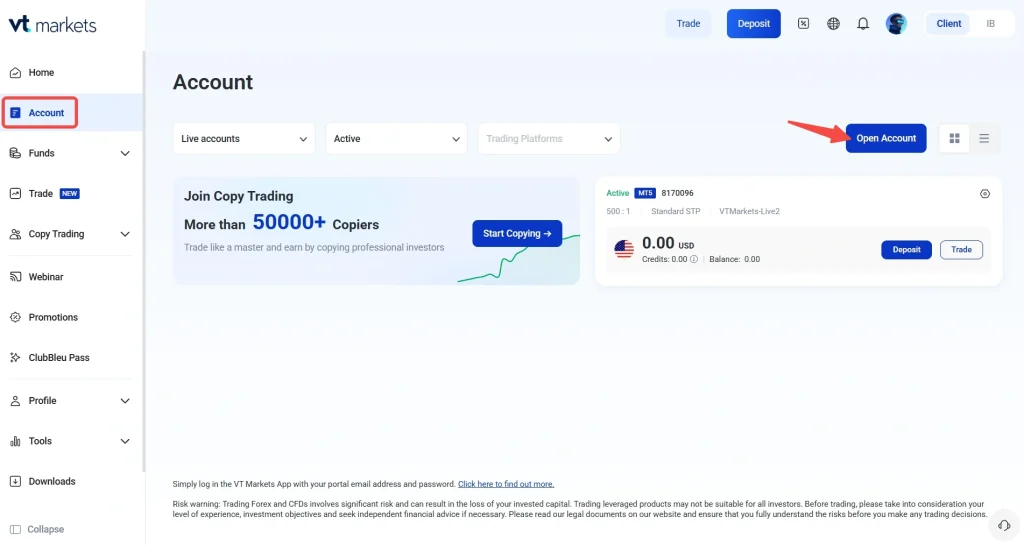
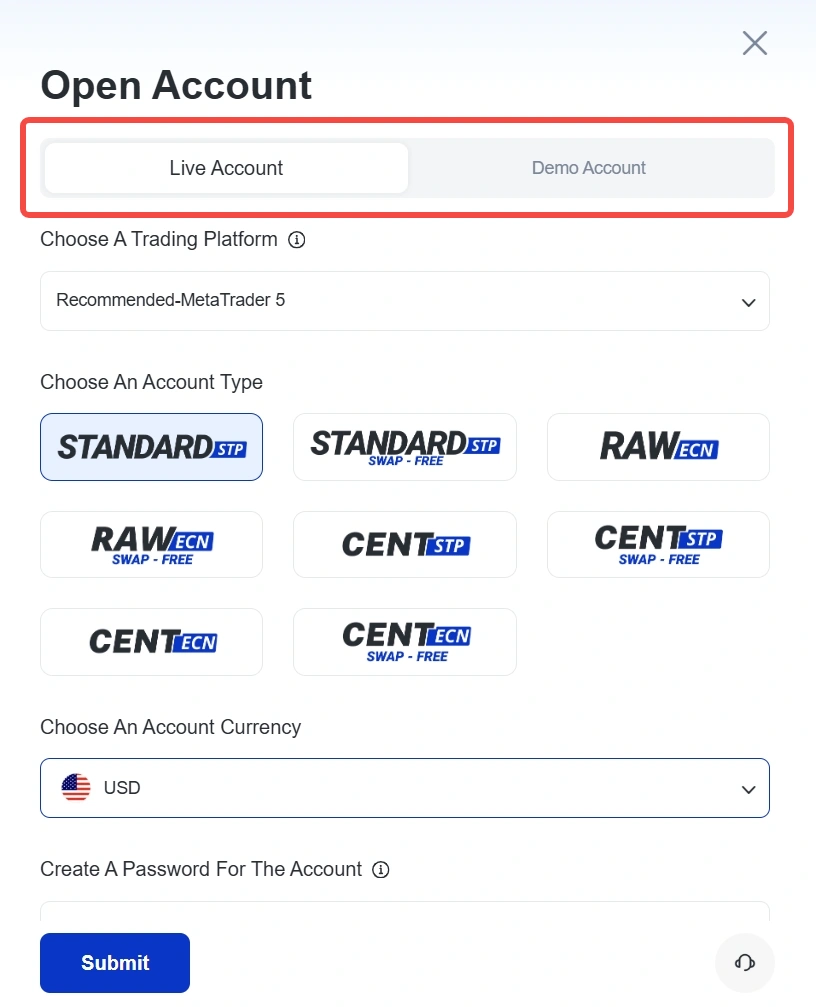
4. Select the type of account you would like to open:
- Live Account: For real trading with deposited funds.
- Demo Account: For practice trading using virtual funds.
5. Select your preferred trading platform.
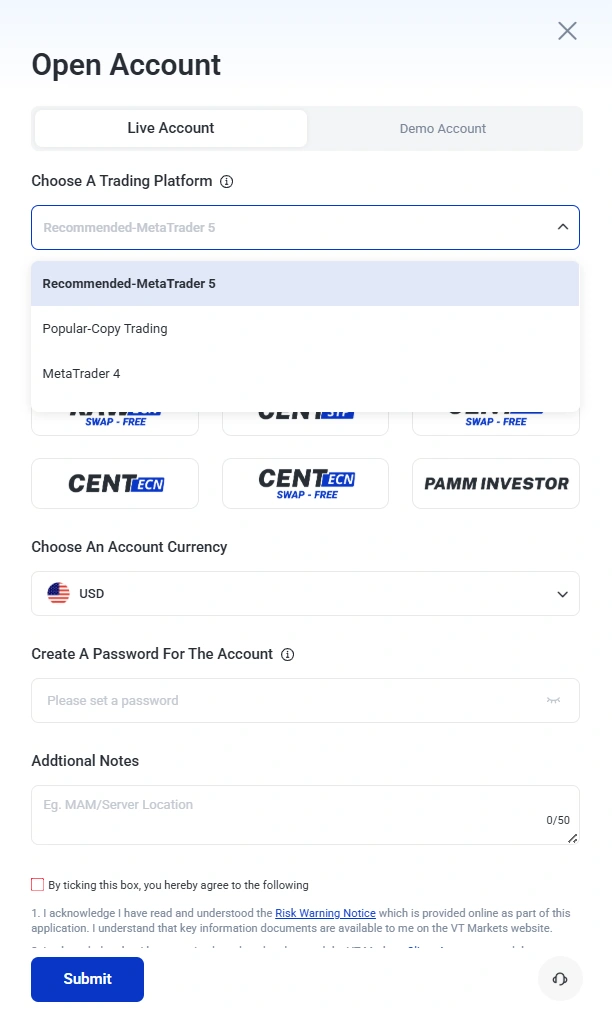
6. Choose your preferred account type based on your trading needs.
7. Choose the preferred currency for your trading account.
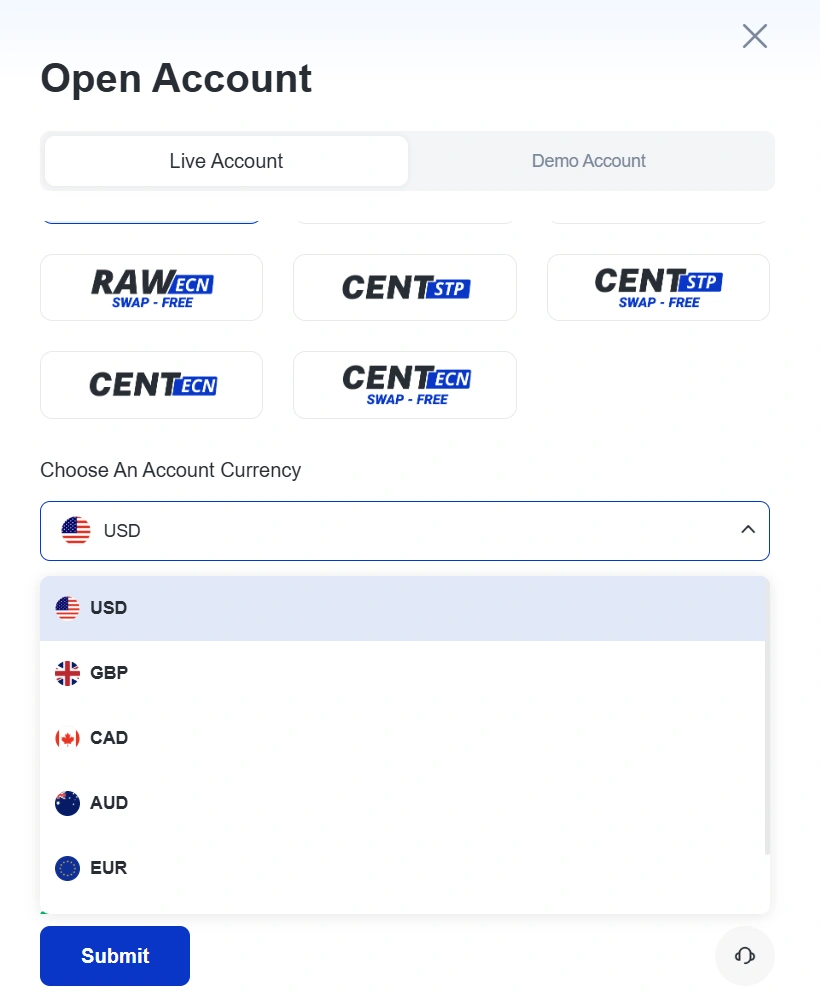
Note: The most common currency is USD. It is recommended to select the currency based on the product traded, or your country of residence for lower conversion costs
8. Create a password for your new trading account.
9. Add any additional notes or special requests if needed.
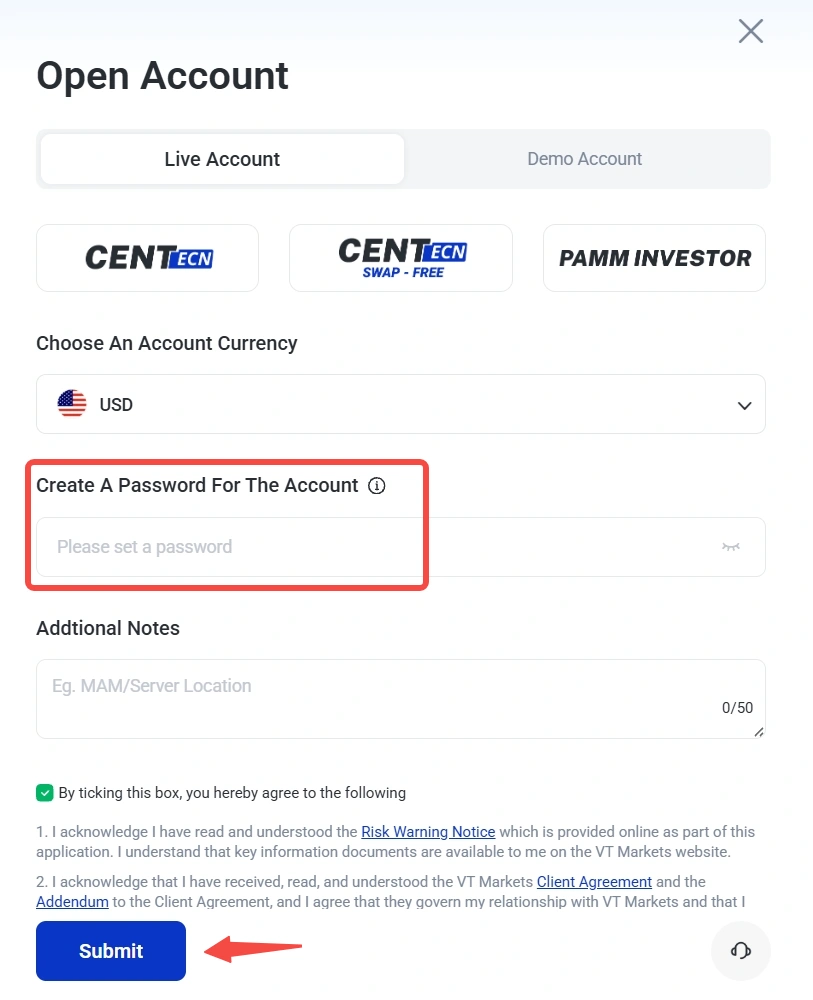
10. Review the Risk Warning Notice and client agreement details.
11. Tick the confirmation box to acknowledge the terms.
12. Click Submit to complete the account creation process.
Start Practicing with a Demo Account
If you are new to trading or want to test the platform first, you can open a Demo Account with VT Markets. The demo account offers a risk-free way to practice trading strategies. It also helps you learn the available trading tools. It’s the perfect way to start building your confidence without any financial risk.
Frequently Asked Questions
What Trading Platforms Are Available at VT Markets?
VT Markets offers several trading platforms to suit different preferences, including MetaTrader 4 (MT4), MetaTrader 5 (MT5), and TradingView. These platforms provide powerful charting, analysis tools, and a seamless trading experience. You can access your account through Web Trader or the VT Markets App, available for both iOS and Android, allowing you to trade from any device, anytime.
What Is the Minimum Deposit Requirement to Open an Account With VT Markets?
The minimum deposit for both the Standard STP and Raw ECN accounts is USD 50. This amount may differ depending on your region or payment method, so you should check the latest requirement in your Client Portal before making a deposit.
How Many Accounts Can I Have with VT Markets?
VT Markets does not accept duplicate applications, which means each client can only register with one email address. However, you can have up to 20 live trading accounts with VT Markets. To apply for additional accounts, simply log in to your Client Portal and go to Account > Open Additional Accounts.
How Long Does It Take to Open an Account With VT Markets?
The account opening process is quick and easy. Once you’ve submitted your registration and verification documents, your account will typically be approved within one business day.
How Can I Track the Status of My Account Approval?
You can log in to your Client Portal to check the status of your account verification and approval. If you have questions, feel free to contact our support team.
Why Is My Account Verification Taking Longer Than 3 Hours?
Blurry document uploads or mismatched addresses between your ID and Proof of Address usually cause delays. Ensure all four corners of your documents are visible. If the issue persists, contact our customer service. Click the “Help” button at the bottom right of our website or email us at info@vtmarkets.com.
What is the difference between a live trading account and a demo trading account at VT Markets?
A live trading account uses real funds and gives you access to actual market conditions, which means both profits and losses are real.
A demo trading account uses virtual funds, allowing you to practise trading strategies and explore the platform without financial risk. Demo accounts are useful for beginners who want to build confidence, while live accounts are designed for traders ready to enter the market with real capital.
What Should I Do If I Forgot My Demo Account Password?
The original password for your demo account can be found in the email sent when the account was created. If you no longer have access to it, you can reset the password or create a new demo account through the Client Portal.
To reset the password, log in to the Client Portal, select the relevant demo account, and go to Settings > Change Password > Forgot Password.
How Do I Add Funds to My Demo Trading Account?
You can adjust your demo account balance through the Client Portal. Go to the Account tab, select Demo Account, choose the relevant account, and click Settings > Reset Balance. You can then enter your preferred balance amount. Please note that changing the demo balance may affect the displayed equity if there are open positions on the account.
Why Am I Not Able to Log In to My MT4/MT5 Demo Account?
If you cannot log in to your demo account, first check whether the account is still active. MT4 demo accounts are deleted 30 days after registration, while MT5 demo accounts are deleted after 30 consecutive days of inactivity on the MT5 app or desktop platform.
You should also confirm that you are using the correct account number, password, and server details from your registration email. If the account is no longer available, you may need to open a new demo account.
Get Started with VT Markets Today
By following these easy steps, you can open your live trading account with VT Markets and begin trading right away. Should you have any issues or questions, our customer support team is available to assist you.
For more information, visit the VT Markets homepage to start your trading journey.
Disclaimer: Regional restrictions may apply. Product specifications, trading conditions, and platform features are subject to VT Markets’ Terms and Conditions.